
I got tired of trying to store the information I wanted about flights in a crappy little paper log book. And, I log most all of my flights with a Flymaster instrument, which I dump to a .kml file to review on Google Earth (so I can see where I was falling out of thermals, etc).
So, I decided to create a quick and dirty Excel-based flight log that imports info from those .kml files into a digital flight log that was easy to navigate and makes sense. I’ve intentionally left it rough to make it easily extensible for those who want to do that.
You can download the RawLogBook from this link.
Here’s how to use it:
Open the Excel logbook.
Go to the sheet called <SITES> and fill in your site names, elevations, and GMT offsets. I have a space for GPS coordinates that you can use or not. I like them for fast references for maps, etc. but they aren’t necessary for the logbook to function.

Download your GPS unit into a .kml file using GPSdump (instructions for that aren’t part of this page).
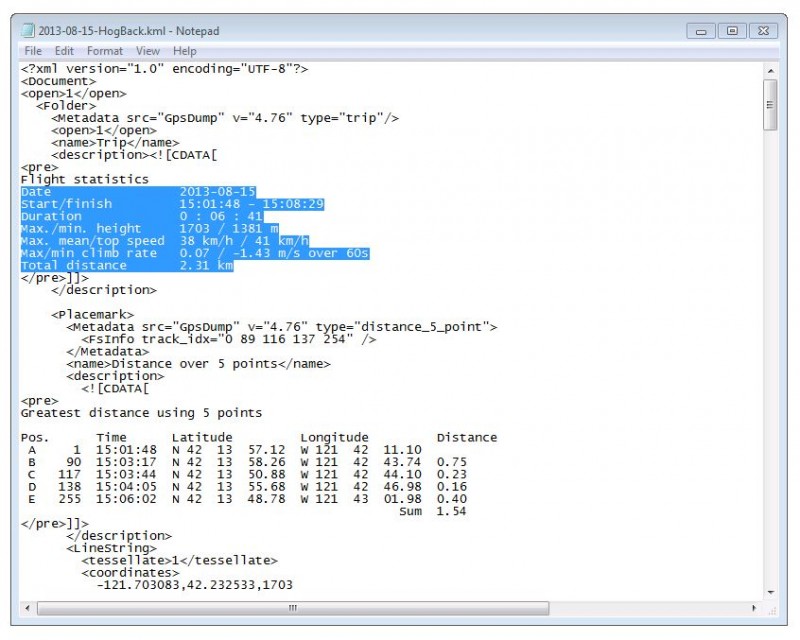
Open a plain text editor. I use Windows Notepad. And, drag the .kml file of your flight into that editor to open it there. Mark this part of the file and hit <ctrl><c> or right click and select <copy> to capture the text.
Go to the Excel logbook and select the sheet called <IMPORT>. Right click in the top cell of the importing block (yellow on this graphic) and select <paste>. If all goes right, your data will be extracted and will populate the cells to the right of that area: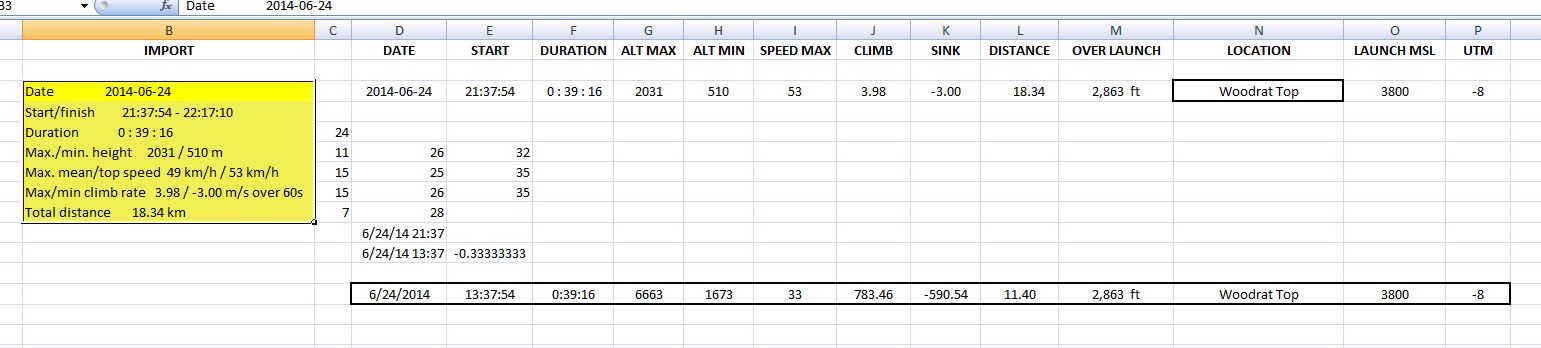
Go to the LOCATION cell (yellow in the next graphic) and select from the drop-down list (that populates from your <sites> sheet, to choose the launch you flew from:
This will import the elevation of that site and the UTM offset for it, calculating the proper local date and time, elevation achieved over launch, etc.: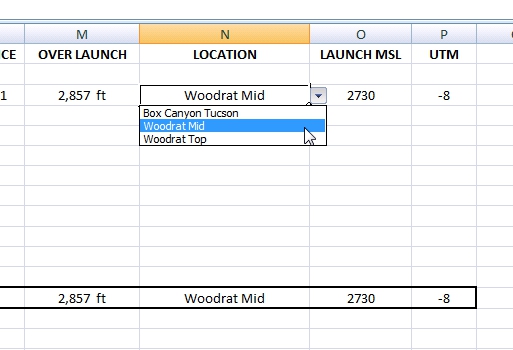
At this point all the metric information will be calculated to feet and miles, etc – and your elevation over launch will be calculated – and you’re ready to move this information to your logbook page.
Go to the calculated logbook information line (yellow in the next graphic) and select all the information in that box. Copy that information with <ctrl><c> or right-click and <copy> to move this information to the log book page: 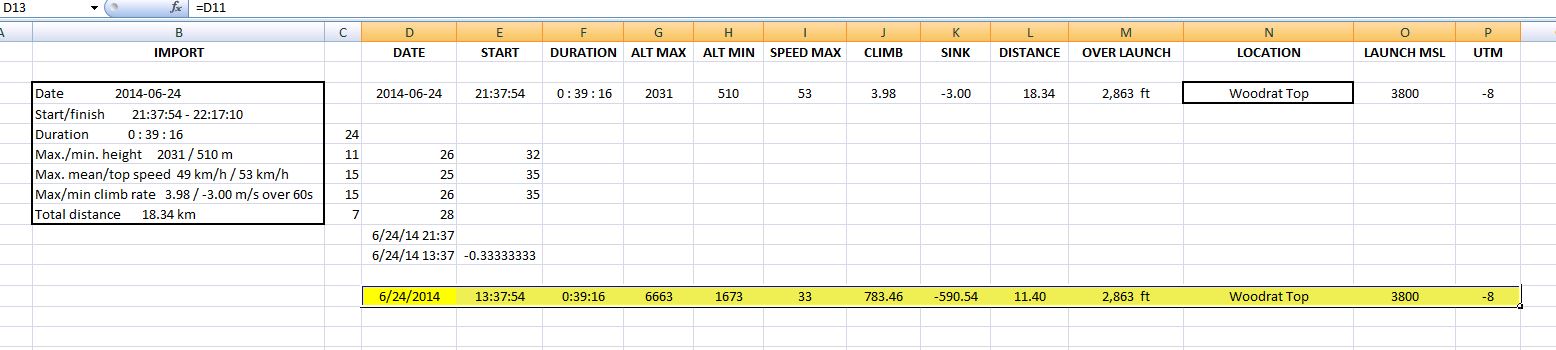
THIS NEXT STEP IS IMPORTANT for the logbook to work!
Select the <LOGBOOK> sheet and find a new line where you want to store the current flight. Right-click in the <date> column, and select <paste special…>:

When you get the next dialogue, select <values>. This tells Excel to paste the VALUES of the cells you’ve copied, instead of their formulas. (If you forget and do a regular paste, just hit <ctrl><z> to UNDO, and then do the <paste special> thing):

The calculated information from the <import> sheet will paste into your logbook like this:

You can set up the log with hours flown before you started using it – and your cumulative flight time will be calculated to the right of the <comments> column in a highlighted cell:
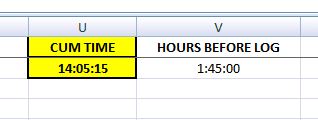
The <cum time> calculation is set up to sum 100 or so flights and then you will want to edit the SUM formula in it to make sure nothing gets left out.
You can add columns or change features of columns in any part of the logbook sheet, and you can alter any of the formulas in the import sheet to your preferences and according to your file format. It’s not that hard.
This spreadsheet gives a fast import of critical data while allowing extensible / customizable logbook format. One of the extra things I do is click <insert> and <hyperlink> the flight number in the left-hand column to the .kml file in my log directory. This is basic Excel stuff and easy. That allows me to click on any flight number in the log and instantly load the flight track to Google Earth for review.
Hopefully, this little utility encourages people to keep more detailed logs and to enjoy getting the most out of them. If you have questions or want to connect around flying, use the contact link on the page above.
Happy Landings!